
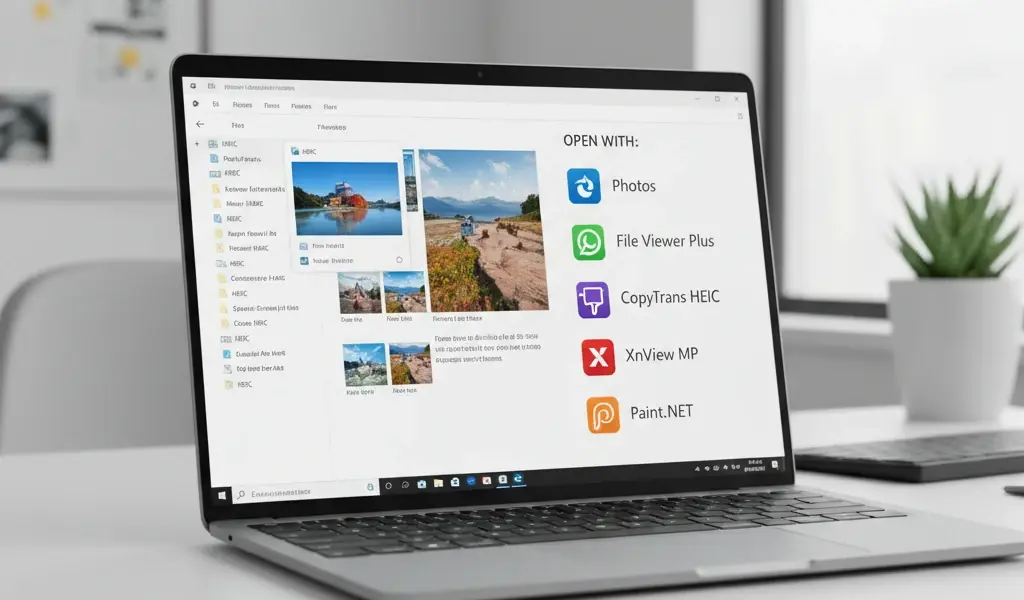
HEIC (High Efficiency Image Container) files are the default photo format used by iPhones since iOS 11, but opening them on Windows can be challenging. This comprehensive guide will show you exactly how to view and convert HEIC files on your Windows computer using multiple proven methods.
What Are HEIC Files and Why Can’t Windows Open Them?
HEIC files are Apple’s modern image format that provides better compression than traditional JPEG files while maintaining superior image quality. However, Windows doesn’t natively support HEIC files, which is why you see error messages when trying to open photos transferred from your iPhone.
The good news is that there are several reliable solutions to open HEIC files on Windows 10 and Windows 11, ranging from free Microsoft extensions to third-party software options.
Method 1: Install Microsoft’s Free HEIF Image Extensions
The easiest way to open HEIC files on Windows is by installing Microsoft’s official extensions from the Microsoft Store:
- Open the Microsoft Store on your Windows computer
- Search for “HEIF Image Extensions” and install it (free)
- Also install “HEVC Video Extensions” for complete compatibility
- Restart your computer after installation
- Your HEIC files should now open in Windows Photos app
This method integrates HEIC support directly into Windows, allowing you to view files in File Explorer thumbnails and open them with the default Photos app.
Method 2: Use CopyTrans HEIC for Windows
CopyTrans HEIC is a popular free plugin specifically designed for Windows HEIC support:
- Download CopyTrans HEIC from the official website
- Run the installer and follow the setup instructions
- The plugin integrates with Windows Explorer and Photos app
- You can now view HEIC files as thumbnails and open them normally
- Includes a right-click conversion option to JPEG
This solution is particularly useful if you want additional features like quick JPEG conversion without opening separate software.
Method 3: Convert HEIC to JPEG Online
For occasional use, online converters provide a quick solution without installing software:
- Visit a reliable online HEIC converter like iMazing HEIC Converter or Convertio
- Upload your HEIC files (usually supports batch conversion)
- Select JPEG as the output format
- Download the converted files to your computer
- Open the JPEG files normally in any Windows application
Remember to use reputable online services and avoid uploading sensitive photos to unknown websites.
Method 4: Use Third-Party Image Viewers
Several free image viewing applications support HEIC files natively:
IrfanView with Plugins
- Download and install IrfanView (free image viewer)
- Install the IrfanView plugins package
- The HEIC plugin enables support for viewing HEIC files
- Offers basic editing and conversion features
XnView MP
- Download XnView MP, a comprehensive image viewer
- Supports HEIC files out of the box
- Provides advanced viewing and basic editing capabilities
- Includes batch conversion tools
Method 5: Convert HEIC Files Using Your iPhone
You can prevent the HEIC issue entirely by changing your iPhone’s camera settings:
- Open iPhone Settings app
- Go to Camera > Formats
- Select “Most Compatible” instead of “High Efficiency”
- Future photos will be saved as JPEG files
- For existing HEIC files, use the Share function to export as JPEG
This method ensures all future photos are Windows-compatible but results in larger file sizes.
Troubleshooting Common HEIC Issues on Windows
If you’re still experiencing problems opening HEIC files, try these solutions:
- Ensure Windows is fully updated to the latest version
- Restart your computer after installing HEIC support software
- Check that your HEIC files aren’t corrupted by testing multiple files
- Verify you have sufficient storage space for conversions
- Try a different method if one doesn’t work for your system
Best Practices for Managing HEIC Files on Windows
To streamline your workflow with HEIC files:
- Install Microsoft’s HEIF extensions as your primary solution
- Keep a backup converter tool for problematic files
- Organize converted JPEG files in clearly labeled folders
- Consider cloud storage solutions that automatically convert HEIC files
- Regular backup of original HEIC files before conversion
By following these methods, you’ll never struggle with opening HEIC files on Windows again. Choose the solution that best fits your needs, whether you prefer built-in Windows support, dedicated software, or online conversion tools.